


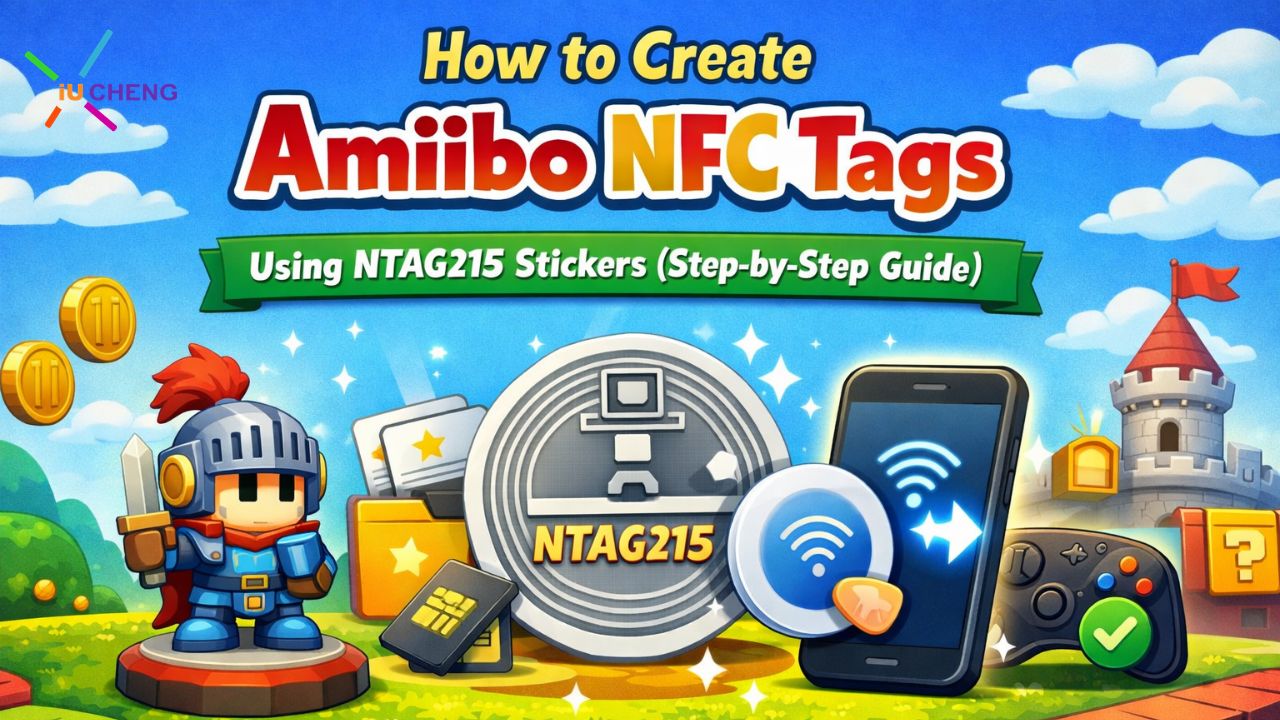
Amiibo figures unlock special content, characters, and rewards in many Nintendo games. Inside every Amiibo figure is a small NFC chip that communicates with the gaming console when placed near the controller.
Because this technology uses standard NFC communication, compatible NFC tags can also store Amiibo data. This is why many gamers and developers search for Amiibo NFC tags or blank NTAG215 NFC stickers.
In this guide, we’ll explain how to create Amiibo NFC tags step by step, what tools you need, and how to choose the right NFC stickers.
What You Need Before Creating Amiibo NFC Tags
Before starting the process, prepare the following items:
- Blank NTAG215 NFC stickers or cards
- An NFC-enabled smartphone (Android recommended)
- An NFC writing application
- Amiibo data files
The most important component is the NTAG215 chip. This NFC chip provides approximately 504 bytes of usable memory, which matches the data structure required for Amiibo tags.
Common NFC tag formats used for Amiibo include:
- Round NFC stickers (25–50 mm)
- PVC NFC cards
- Epoxy NFC tags
Larger NFC stickers typically offer better reading performance due to larger antennas.
Step 1: Enable NFC on Your Smartphone
Most modern smartphones support NFC, but the feature must be enabled.
For Android Devices
- Open Settings
- Select Connections or Wireless Settings
- Turn on NFC
For iPhone Devices
iPhones starting from iPhone XS and newer support background NFC reading. However, many users still prefer Android devices for NFC tag writing.
Step 2: Install an NFC Writing App
To program NFC tags, you need an NFC encoding application.
These tools allow you to:
- Write data to NFC tags
- Verify tag memory
- Read tag information
- Lock or protect NFC tags
Make sure the application supports NTAG215 chips and NDEF writing.
Step 3: Prepare the Amiibo Data
Amiibo NFC tags store specific binary data representing each Amiibo figure.
Before writing the tag, verify the following:
- The file is compatible with NTAG215 memory capacity
- The NFC tag is blank or formatted
- The chip supports ISO/IEC 14443A
Once the data file is ready, open the NFC writing app and select the option to write data to the NFC tag.
Step 4: Write the Data to the NFC Tag
Follow these steps to encode the tag:
- Open the NFC writing application
- Select the Amiibo data file
- Tap Write to NFC Tag
- Place the NTAG215 NFC sticker near the phone’s NFC reader
- Wait for the writing process to complete
Most smartphones require the tag to be within 1–3 cm of the NFC reader.
Do not move the tag while writing, as interrupting the process can corrupt the data.
Step 5: Verify the NFC Tag
After encoding the tag, verify the result using your NFC app.
Check the following:
- Chip type (NTAG215)
- Memory structure
- Stored data
Successful verification confirms that the tag is ready to function like a standard Amiibo NFC chip.
Step 6: Use the Amiibo NFC Tag
Once programmed, the NFC tag can be used with compatible gaming systems.
Typical process:
- Open a game that supports Amiibo
- Place the NFC tag on the controller’s NFC reader
- Wait for the game to detect the tag
If the data is valid, the game will recognize the Amiibo and activate the related features.
Tips for Better NFC Performance
- Choose high-quality NFC stickers to ensure stable signal performance
- Use larger NFC tags for better reading distance
- Avoid metal surfaces, which can interfere with NFC signals
- Select genuine NTAG215 chips for reliable compatibility
Common Mistakes to Avoid
- Using NTAG213 chips with insufficient memory
- Buying low-quality NFC tags with poor antenna design
- Interrupting the NFC writing process
- Using incompatible NFC writing apps
Conclusion
Creating your own Amiibo NFC tags is straightforward when using the correct hardware and compatible NFC chips.
The key requirements are:
- Using NTAG215 NFC stickers
- Encoding the tag with a compatible NFC app
- Verifying the tag after writing
With high-quality blank NFC tags and the proper tools, you can easily create reliable Amiibo-compatible tags for gaming projects, development, or testing.


